If your HSSGamepad will not connect, keeps disconnecting, or responds slowly during a game, the problem may come from a few common connection issues.
However, there is one important point to understand first: public information about the HSSGamepad is limited and inconsistent. Different websites describe its connection methods and features differently, and I could not verify a clear manufacturer manual covering every model.
Because of that, this guide focuses on general troubleshooting steps that apply to Bluetooth, USB, and wireless game controllers. Check your own controller’s manual for model-specific button combinations or settings.
Table of Contents
ToggleWhat Are the Common HSSGamepad Connectivity Problems?
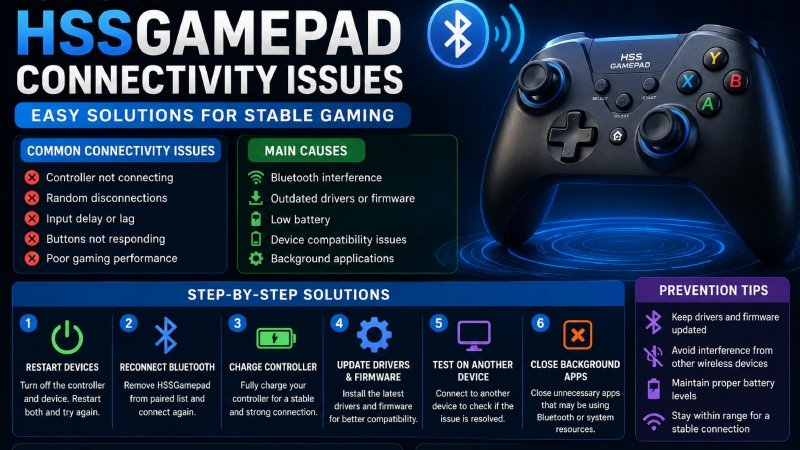
Most controller connection problems fall into a few simple categories:
- The controller does not appear in the Bluetooth list.
- It appears but refuses to pair.
- It connects and then disconnects.
- The controller connects, but buttons do not work.
- Input feels delayed or unstable.
- A computer does not recognize the controller through USB.
The correct solution depends on the exact problem. Start with the simplest checks before changing drivers or resetting anything.
Check the Battery First
If you use the controller wirelessly, start by checking its battery.
A low battery can cause unstable wireless performance or unexpected disconnections. Charge the controller fully and then test the connection again.
If the controller works normally after charging, the battery level may have contributed to the problem.
If the issue continues with a full charge, move to the next step.
Restart Both Devices
A simple restart can clear temporary Bluetooth or USB connection problems.
Turn off the gamepad and restart the phone, computer, TV, or other device you are using.
Then turn the controller back on and try connecting again.
This step costs nothing and can save you from making unnecessary system changes.
Forget the Old Bluetooth Connection
If your controller worked previously but suddenly refuses to connect, your device may still have an old Bluetooth pairing record.
On most phones and computers, you can:
- Open Bluetooth settings.
- Find the saved gamepad connection.
- Select Forget, Remove, or Unpair.
- Restart Bluetooth.
- Put the controller into pairing mode.
- Search for it again.
The exact menu names can vary between Windows, Android, iPhone, macOS, and other platforms.
Make Sure the Controller Is in Pairing Mode
Simply turning on a controller does not always place it into Bluetooth discovery mode.
Use the pairing instructions supplied with your specific HSSGamepad model.
Some third-party guides claim that particular button combinations or LED patterns activate pairing mode, but those details can vary between controllers. I would not recommend following an exact button combination unless your model’s manual confirms it.
Reduce Wireless Interference
Wireless signals can become less reliable when many devices operate nearby.
If you experience random disconnects or input lag, try moving the controller closer to the device.
You can also temporarily move other wireless accessories away from the setup and test the controller again.
This is especially useful if the connection becomes stable when you play closer to your phone or computer.
Check the USB Cable and Port
If you use the HSSGamepad with a USB cable, the cable itself may cause the problem.
Some USB cables only provide power and do not transfer data.
Try:
- Another USB cable that supports data
- Another USB port
- A direct connection instead of a USB hub
- Another computer, if available
If another cable or port works immediately, the original connection was likely the problem.
Check Your Device’s Controller Settings
Sometimes the controller connects successfully, but the game does not recognize its buttons.
This does not necessarily mean that the connection failed.
Check whether your operating system recognizes the controller first. Then check the game’s controller or input settings.
Some controllers also support different input modes. However, because publicly available HSSGamepad documentation is inconsistent, you should use the mode recommended in your specific model’s manual rather than relying on a generic button combination from another website.
Update Your System and Drivers
If the controller works on one device but not another, the problem may involve the host device rather than the gamepad.
On a PC, check for:
- Windows updates
- Bluetooth driver updates
- USB driver issues
- Game-controller settings
On phones and tablets, install available system updates and restart the device before testing again.
Do not download random drivers from unknown websites simply because an article recommends them.
Test the Controller on Another Device
This is one of the most useful troubleshooting steps.
Try the controller with another compatible device.
For example:
Works on phone → fails on PC
The PC’s Bluetooth, USB connection, driver, or game settings may need attention.
Fails on every compatible device
The controller itself may have a hardware or firmware problem.
This simple test can help you identify which side of the connection needs troubleshooting.
HSSGamepad Connects but Keeps Disconnecting
Random disconnections usually require a little more testing.
Start with these steps:
- Fully charge the controller.
- Move closer to the connected device.
- Reduce nearby wireless interference.
- Remove old Bluetooth pairings.
- Restart both devices.
- Test another connection method if your model supports one.
- Test the controller on another device.
If the controller repeatedly disconnects on multiple devices even after a full charge and fresh pairing, hardware may be involved.
HSSGamepad Has Input Lag
Input lag does not always mean that the controller itself has a problem.
Wireless interference, distance, battery condition, system performance, and game settings can all affect how quickly input reaches the game.
Try the controller closer to the host device first.
If possible, test a wired connection. If the delay disappears when you use a cable, the problem may relate to the wireless connection rather than the gamepad’s buttons or controls.
HSSGamepad Works but the Buttons Do Nothing
If your device shows the controller as connected but the game does not respond, check the game’s input settings.
The operating system may recognize the controller while the game uses a different input standard.
Also test the controller outside the game if your operating system provides a game-controller testing tool.
If the buttons work outside the game but not inside it, look at the game’s controller configuration before assuming the gamepad is defective.
When Could the Problem Be Hardware?
Consider a hardware problem if:
- The controller fails on several compatible devices.
- It disconnects even when fully charged.
- A wired connection also fails.
- Buttons or sticks stop responding physically.
- The controller shows signs of physical or liquid damage.
At that point, repeated Bluetooth resets probably will not solve the issue.
If the controller still has a warranty, contact the seller or manufacturer before opening the device yourself.
Quick Troubleshooting Table
| Problem | First Thing to Try |
|---|---|
| Controller does not appear | Enter pairing mode and restart Bluetooth |
| Bluetooth pairing fails | Forget the old connection and pair again |
| Random disconnects | Charge the controller and reduce interference |
| Input lag | Move closer and test a wired connection |
| USB not detected | Try another data cable and USB port |
| Connected but buttons do not work | Check input mode and game settings |
| Works on one device only | Check the other device’s drivers/settings |
| Fails everywhere | Consider a hardware problem |
What We Could Not Confirm About HSSGamepad
To keep this guide accurate, it is important to separate general troubleshooting advice from product-specific claims.
Publicly available sources do not provide a consistently verifiable manufacturer specification for every feature attributed to “HSSGamepad.”
Therefore, this article does not treat the following as confirmed for every HSSGamepad model:
- Exact Bluetooth version
- Exact pairing button combination
- Exact LED meanings
- Specific battery percentage requirements
- Guaranteed support for every operating system
- Exact XInput or DInput behavior
- Specific firmware update procedures
Some third-party articles make these claims, but the information varies between sources.
Frequently Asked Questions
Why is my HSSGamepad not connecting?
Start by charging the controller, restarting both devices, removing the old Bluetooth connection, and pairing the controller again.
Why does my HSSGamepad keep disconnecting?
A low battery, wireless interference, distance, device settings, or a hardware problem can cause repeated disconnections. Test the controller on another device to narrow down the cause.
Why does HSSGamepad connect but not work in my game?
The operating system may recognize the controller while the game uses different input settings. Check the game’s controller configuration and test the controller outside the game.
Can a USB cable fix HSSGamepad connectivity problems?
If your model supports wired operation, a USB data cable can help determine whether the problem comes from the wireless connection. Make sure the cable supports data transfer.
Should I download a special HSSGamepad driver?
Do not download drivers from random websites. First, check your operating system, the controller’s official documentation, and the manufacturer’s support information if available.
How can I tell whether my HSSGamepad is defective?
Test it on another compatible device. If it repeatedly fails across multiple devices and connection methods, the controller may have a hardware problem.
Final Verdict
Most game-controller connection problems do not require complicated repairs. Start with the battery, restart both devices, remove old pairings, check the connection mode, and reduce wireless interference.
If you still cannot connect the controller, test it on another device. That step can help determine whether the problem comes from the HSSGamepad or the device you are trying to connect it to.
One important caution remains: public information about HSSGamepad itself is not consistent enough to treat every online specification as confirmed. So avoid generic button combinations, driver downloads, or technical fixes unless they match your specific model’s documentation.
The safest approach is simple: troubleshoot the actual connection behavior first, and use manufacturer documentation whenever you need model-specific instructions.

Writer & Editor, UnderstandingBlogs
Luke David is a Writer & Editor at UnderstandingBlogs. He creates clear, research-based content on technology, AI, business, entertainment, and public figures. His work focuses on accurate facts, simple explanations, and useful insights readers can trust. Every article is carefully reviewed and fact-checked before publication.
- G15Tools Com Gadget: What It Is and What You Should Know - September 9, 2026
- Office Avstarnews: Understanding Its Digital Newsroom and Work Process - September 8, 2026
- Competitive Edge The SerpentRogue: Complete Guide to Strategy, Alchemy, and Survival - September 7, 2026